How to Connect Claude or ChatGPT to NorseLift (MCP Guide)

Logging a workout shouldn't need ten taps. NorseLift Pro members can connect an AI assistant such as Claude or ChatGPT to their NorseLift account and just ask: log today's session, fix a typo in last week's squats, or build a new routine and put it on the calendar.
This guide covers what the NorseLift MCP server is, what an assistant can do with it, and how to connect Claude and ChatGPT step by step.
What is the NorseLift MCP server?
MCP (Model Context Protocol) is an open standard that lets AI assistants use tools in other apps. NorseLift runs an MCP server at:
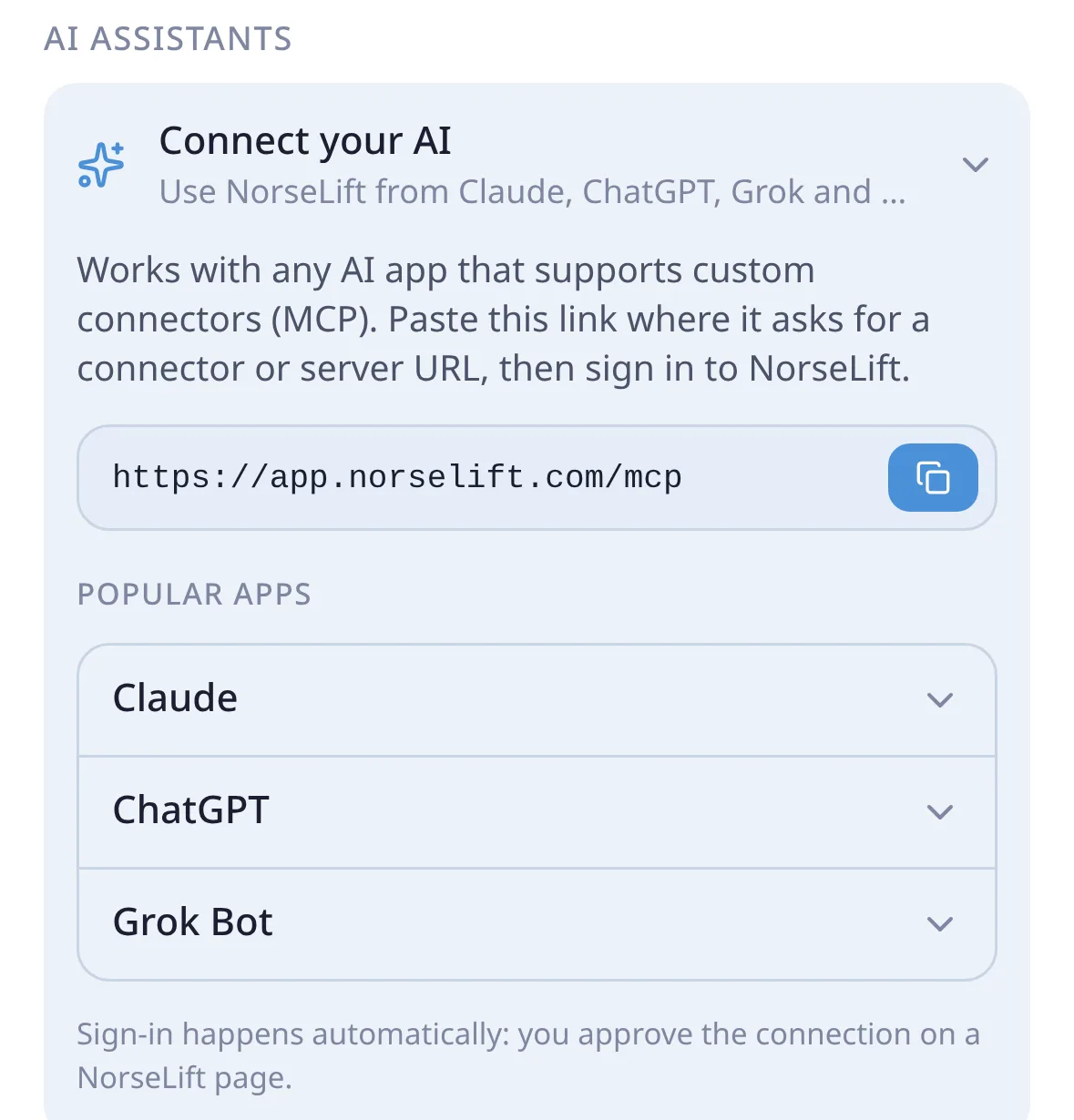
https://app.norselift.com/mcp
When you add that URL to an AI app as a custom connector, the app asks you to sign in to NorseLift and approve the connection on a NorseLift page. From then on, the assistant can read and update your training data, and nothing else. You can see and revoke connected apps any time in NorseLift under Settings.
What can your AI do in NorseLift?
- Log and edit workouts: "Log today: bench 4×8 at 80 kg, rows 3×10 at 60 kg." Fix a set, add an exercise, or remove one.
- Read your history and stats: recent sessions, a specific workout, and training stats.
- Create workouts and routines: build workouts in your Library and combine them into a routine.
- Schedule and activate routines: put a routine on Mon/Wed/Fri and make it your active one.
- Undo mistakes: recently deleted workouts, exercises and sets can be restored.
Who can use it?
Connect your AI is a Pro feature. It's included in every active Pro plan, whether paid, gifted or earned through a referral, at no extra cost. You also need an AI app that supports custom MCP connectors.
How to connect Claude
- In NorseLift, open Settings → Connect AI and copy
https://app.norselift.com/mcp. - In Claude, go to Settings → Connectors → Add custom connector.
- Paste the URL and click Add.
- Sign in to NorseLift on the page that opens and approve the connection.
- Start a new chat and ask for something, for example "What did I train this week?"
How to connect ChatGPT
- Copy
https://app.norselift.com/mcpfrom NorseLift Settings → Connect AI. - In ChatGPT, open Settings → Apps & Connectors and turn on Developer mode.
- Choose Create, paste the URL and save.
- Approve the connection on the NorseLift sign-in page.
Other assistants work the same way: anywhere an app asks for a connector or MCP server URL, paste the NorseLift URL and sign in. Menu names in AI apps change often, so if a step looks different, look for "connectors" or "MCP" in the app's settings. Using Grok? See how to use NorseLift with Grok, Grok Bot and in your Tesla.
Example prompts
- "Make me a 3-day aesthetic routine, Mon/Wed/Fri, and make it active."
- "Log today's push workout: bench 4×8 at 80 kg, overhead press 3×8 at 45 kg, lateral raises 3×15 at 10 kg."
- "I logged 100 kg on my last squat set by mistake, it was 90. Fix it."
- "How has my bench press progressed over the last two months?"
- "Swap Wednesday and Friday in my routine for next week."
Privacy and control
The connection uses OAuth: you approve it on a NorseLift page, and the assistant never sees your password. It only gets access to your own NorseLift data. Remove a connected app in NorseLift Settings at any time, and access stops.
Connect your AI to NorseLift
Included in NorseLift Pro. Open Settings → Connect AI, copy the URL, and paste it into Claude, ChatGPT or any MCP app.
Open NorseLift